Before pairing, check the following items:
- Ensure that any batteries in the unit are removed, by pulling the unit off the wall, flipping it over and removing them.
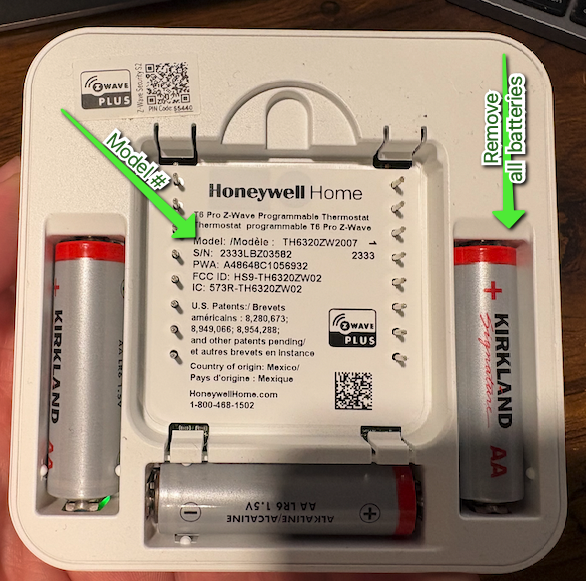
- While the unit is flipped over - ensure that the model number of the thermostat is one of the following (see above image). If its anything different, the thermostat will not pair to the system.
- TH6320ZW2007/U
- TH6320ZW2003/U
- After removing the bateries, and confirming the serial number - place the unit back on the wall. Once its powered up, navigate to "Menu" then use the arrows to navigate to "Z-WAVE Setup", and hit the "Select" button at the bottom of the screen. You'll be presented with one of the followign options.
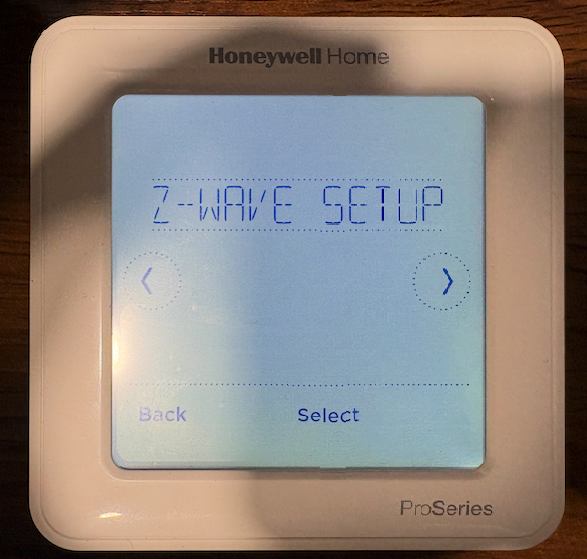 If you see Option 1 - follow the steps ito exclude FIRST, and then proceed to including/pairing. If you see Option 2, skip ahead to including/pairing.
- Option 1: Exclude
- Option 2: Start Include (or Set Control to Include)
Steps for Excluding a thermostat
- In the LittleBird Portal, navigate to the unit, and click on the serial number
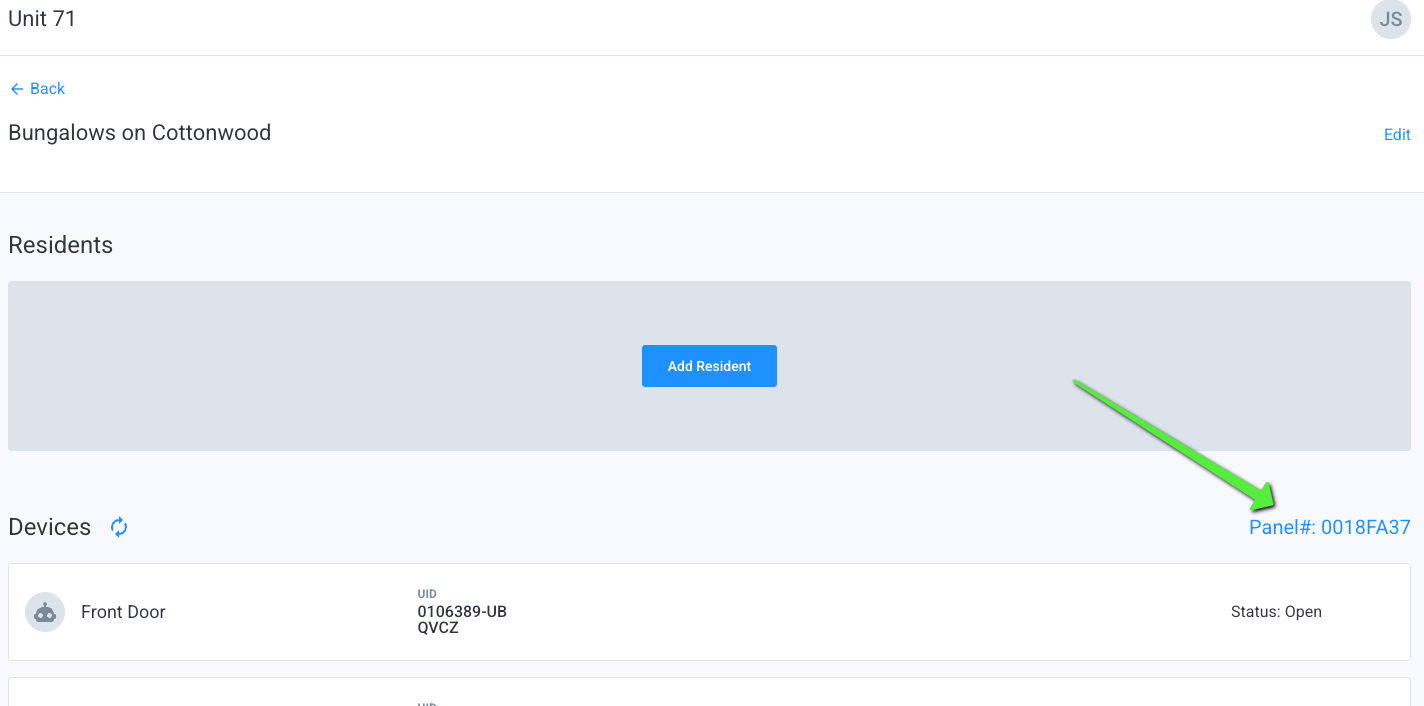
- That will bring up the panel page, with its associated devices. Click on "Remove Device"
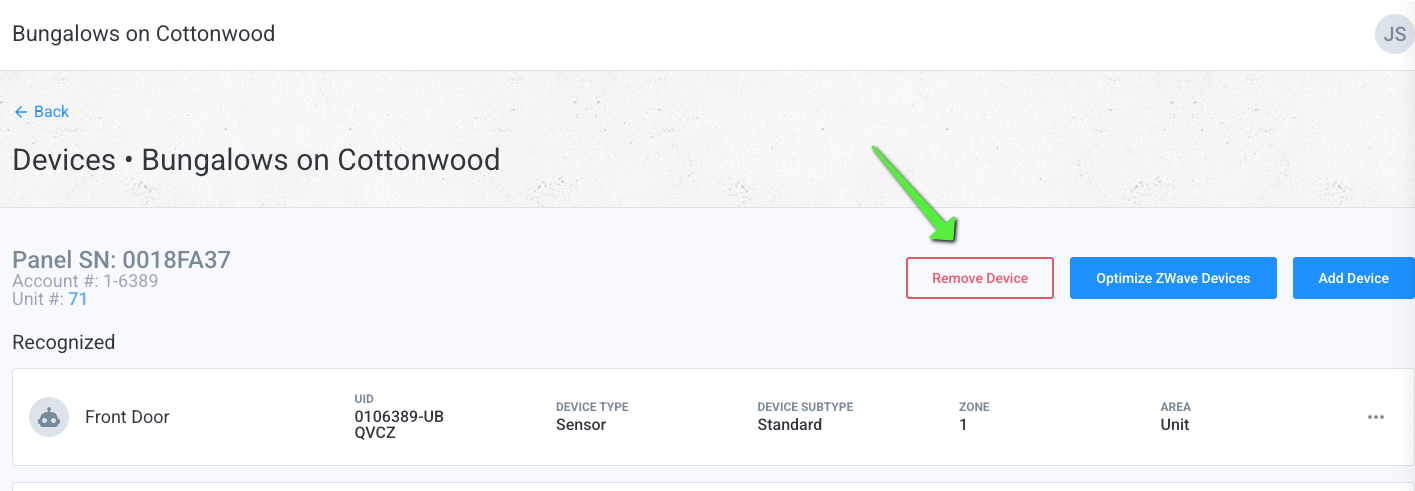
- Wait until the webpage says "Scanning", and then, on the thermostat, navigate to "Menu" > "Zwave Setup", and press the select button. When you see "Exclude", press the select button again.
- The thermostat will say "Excluding" and then "Excluded" and some number. The portal will take a little longer, but as long as you see "Device Removed" (you may see a banner indicating that the device was "orphaned") you can move to the next step. The thermostat has been successfully cleared of prior pairings and is ready to be paired
Steps for Including a thermostat:
1. Navigate to the unit page, and click on the serial number: 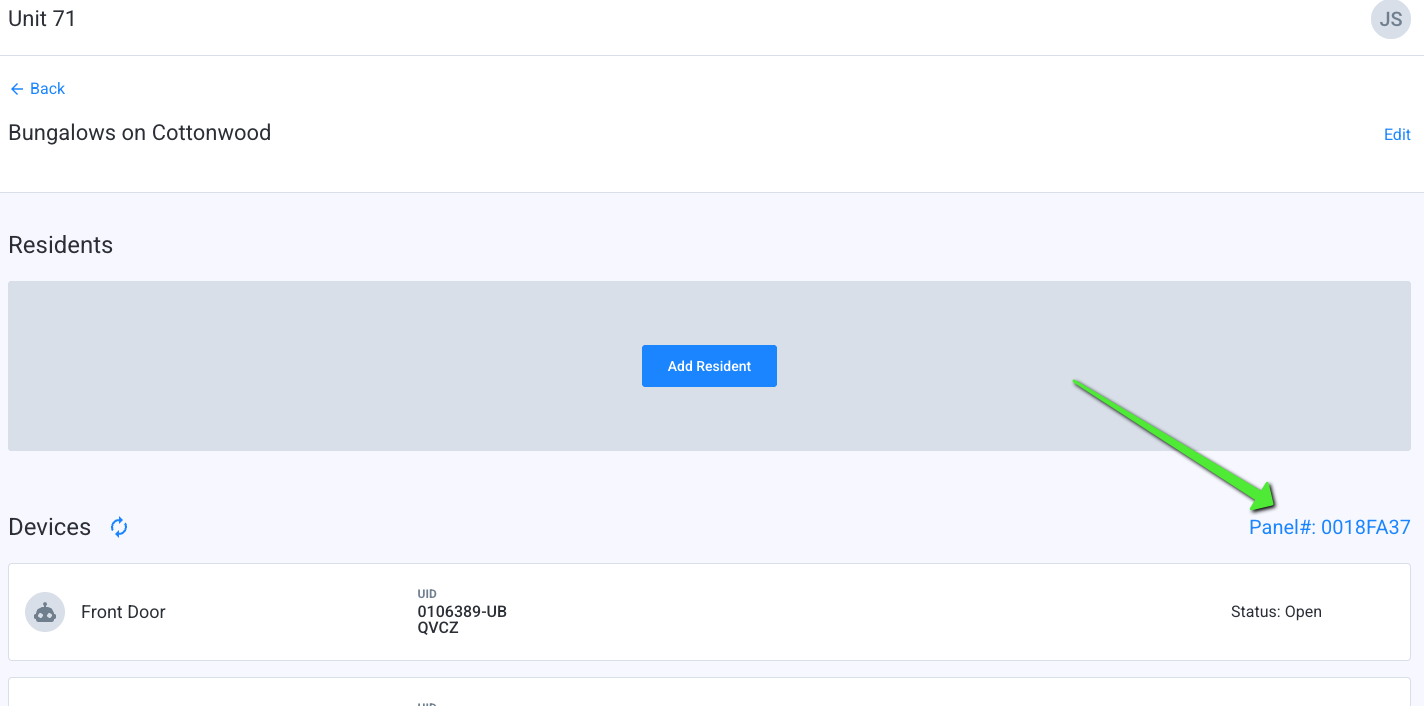
2. In the Panel page, confirm there is no existing thermostat. If there is, click the 3 dots next to it and "Hide Device". Then click on the "Add Device" button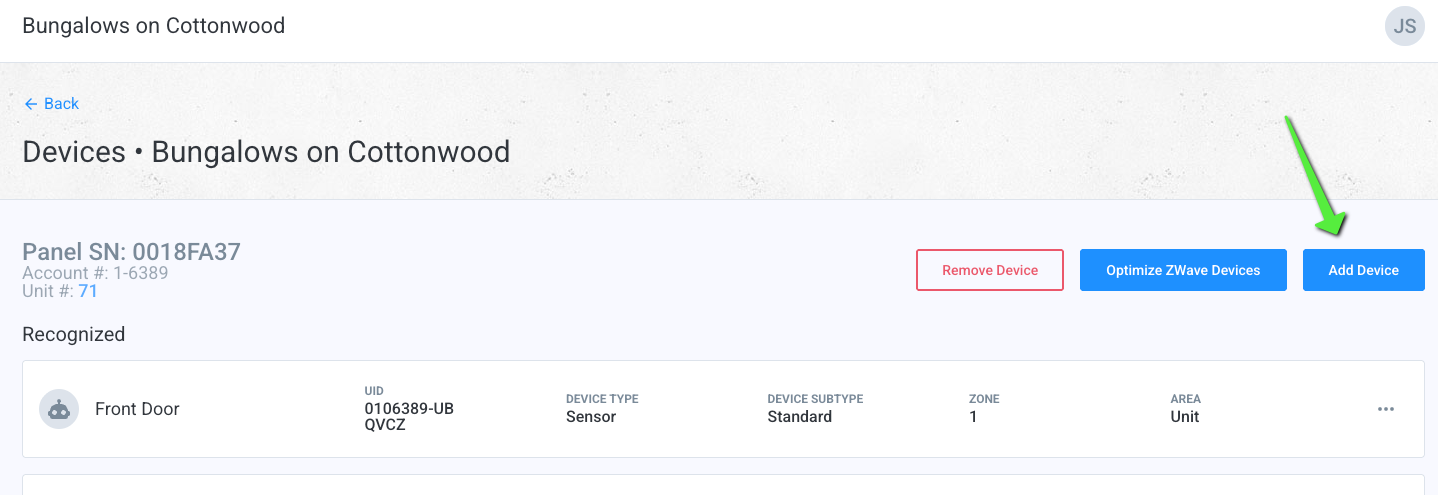
3. Select "Zwave Device" and then, on the following page, from the device drop-down, select "Thermostat", tick the box for "Hide Battery Status" and then "Continue"
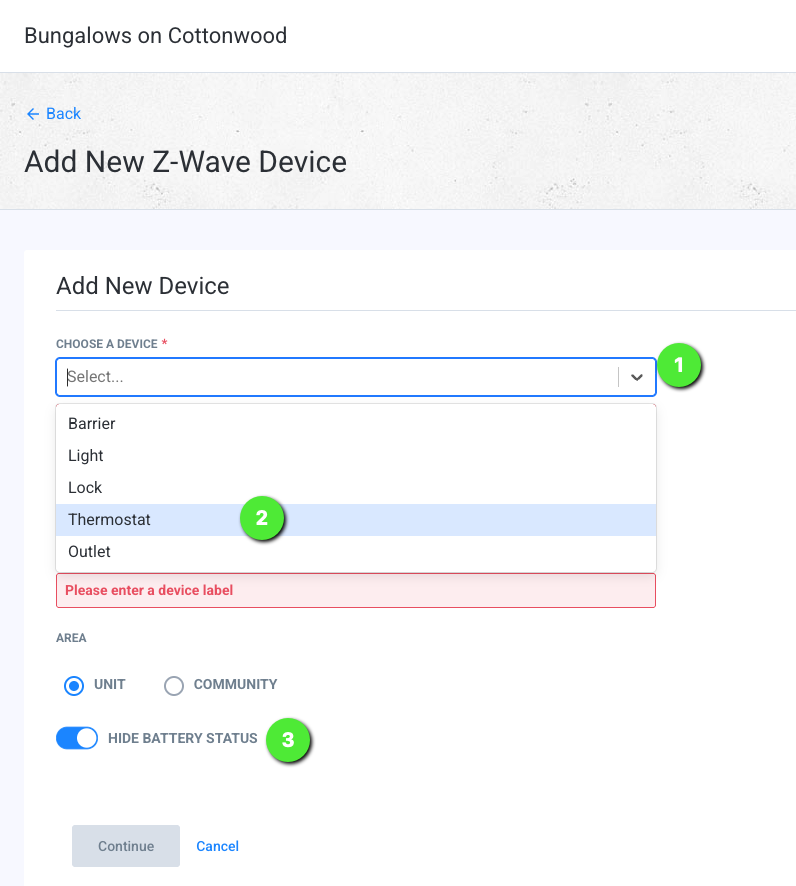
4. Wait until the webpage says "Scanning", and then, on the thermostat, navigate to "Menu" > "Zwave Setup", and press the select button. When you see "Start Include", press the select button again.
5. The thermostat will say "Including" and then "Included" and some number, and the portal will say "Device Found" and then "Thermostat Device Added"
6. Once the Thermostat has been added, press the "Optimize Z-wave Devices" and let that complete. A green checkmark indicates the new thermostat has been added successfully.
Generally, once this is completed, we recommend testing from the portal or app to ensure its responding.
Was this article helpful?
That’s Great!
Thank you for your feedback
Sorry! We couldn't be helpful
Thank you for your feedback
Feedback sent
We appreciate your effort and will try to fix the article