Step 1 - Removing the Kadaas Lock from the old unit. (If you do not know the master code - you can skip to step 1A)
- In the LittleBird Portal, navigate to the unit, and click on the serial number
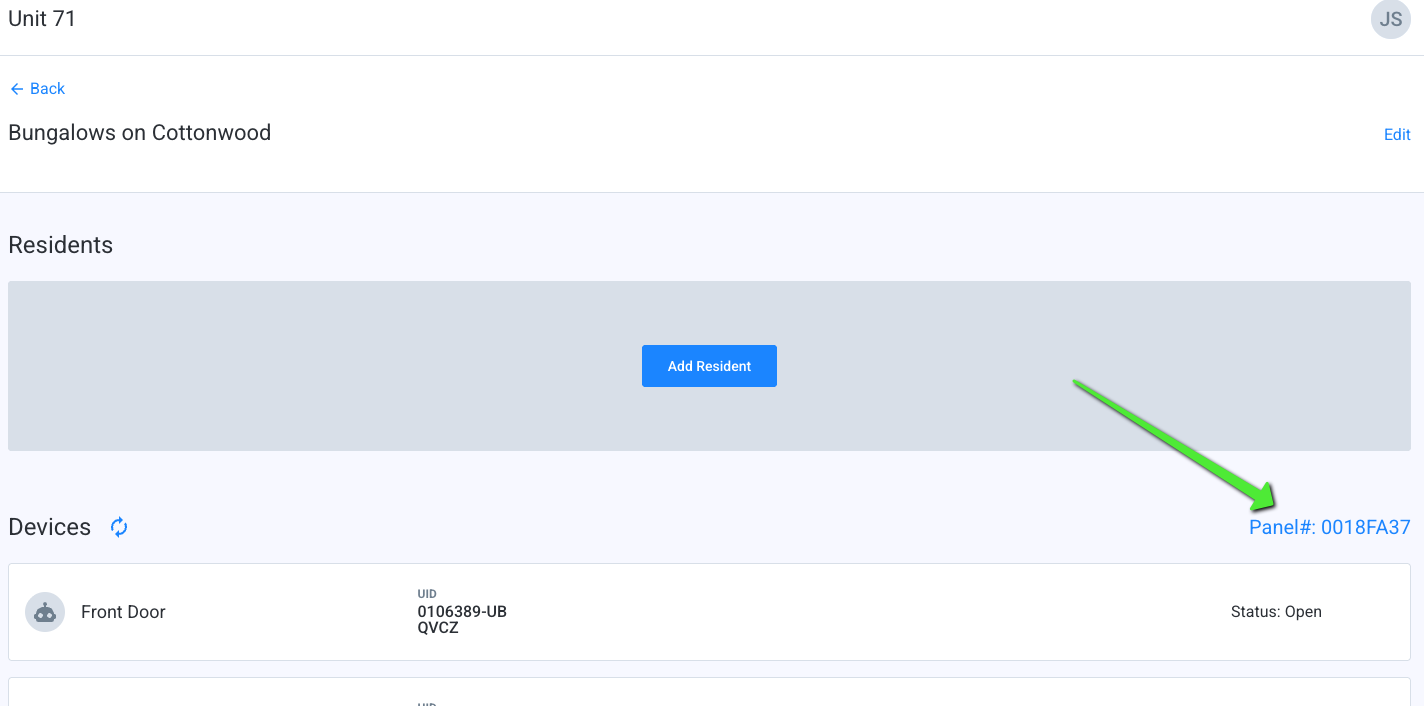
- That will bring up the panel page, with its associated devices. Click on "Remove Device"
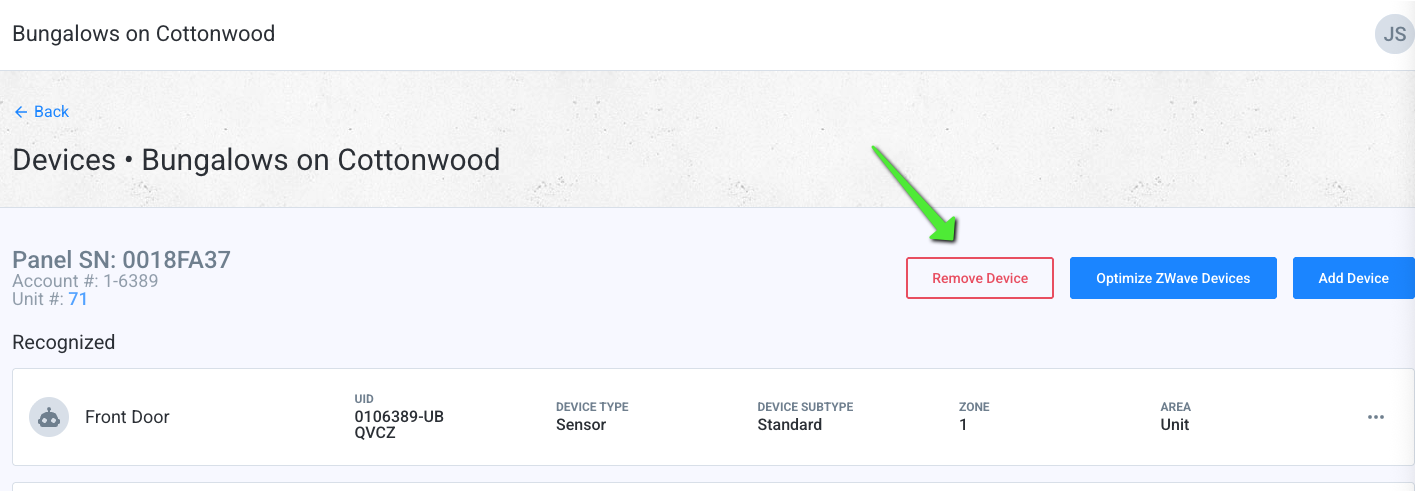
- Wait until the webpage says "Scanning", and then, on the Kadaas Lock, press the following sequence of buttons: Kaadas Button, Kadaas button, then enter the master code, then the Kadaas Button again, Then "0", then, press the 2 and the Kadaas button together. (A green flash on the lock will indicate a successful "step" in teh process. Red - start over)
- On the webpage, "Scanning" will change to "Device Found" and then "Lock device Removed"
- The Lock has been successfully removed from the old unit. Install the lock in the new unit, and Move to Step 2
Step 1A: Removing the lock and resetting it, if the master code is unknown
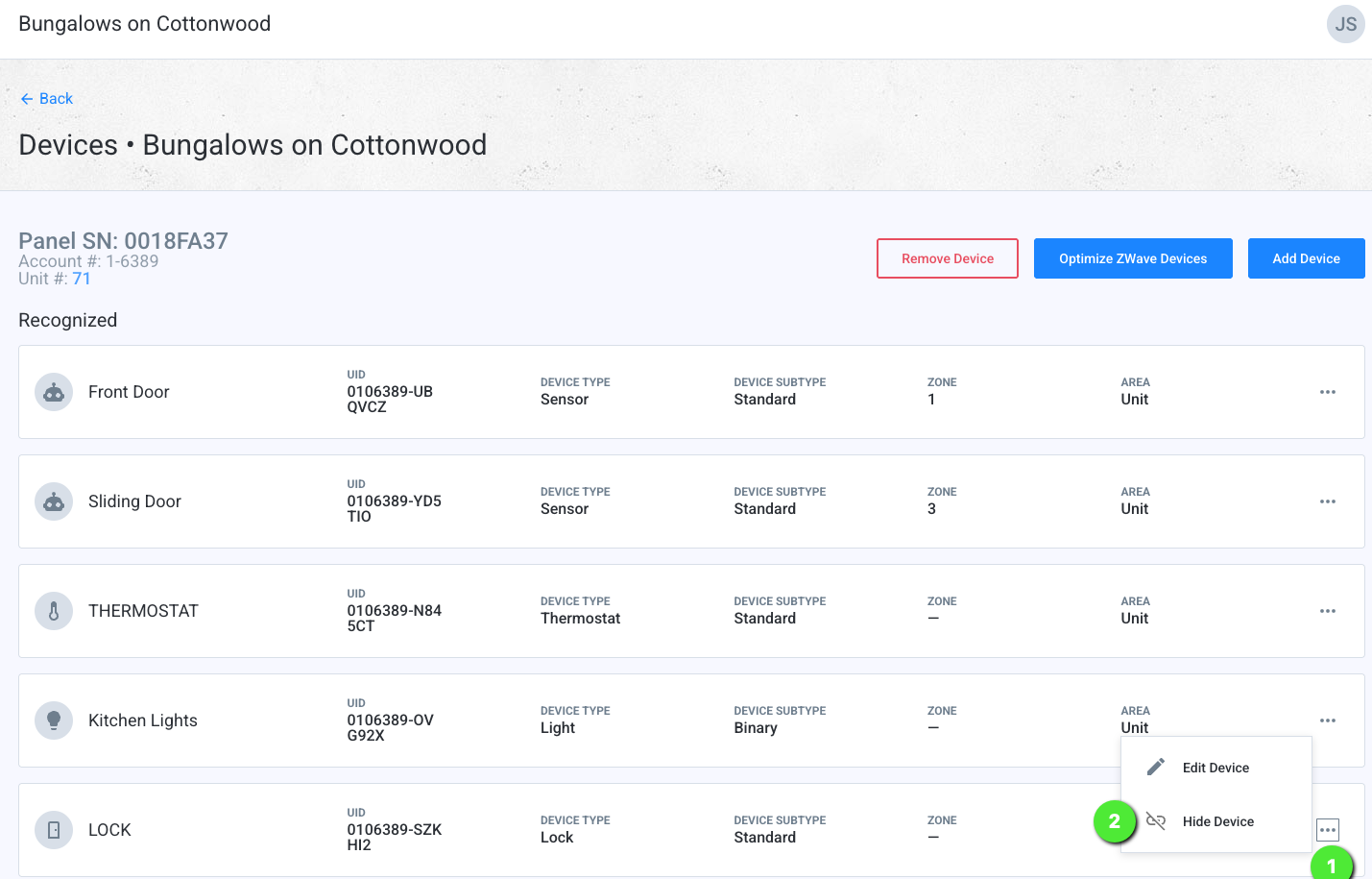
- In the portal, click on the 3 dots next to the lock that is non-functional, or you don't know the code to, and select "Hide Device". That will hide it from the resident.
- Ensure the door is unlocked, and then Open the battery cover
- Remove one battery
- Press and hold the reset button, using a paperclip or sim card tool
- While holding the button, put the battery back in
- Continue holding Until you hear a long beep. Congrats! The lock has been reset!
- Now you need to set the new master code. Press the keys on the lock in the following order: Kadaas button, Kadaas button. Then, enter in 12345678, Then, press the Kadaas button 1 time, Then press 1, then enter the new master code, and then press kadaas, then enter the new master code again, and press the kaadas button again. A green flash on the kadaas button indicates successful programming.
Step 2: Pairing the lock to the new unit
1. After installing the new lock, navigate to the unit page, and click on the serial number: 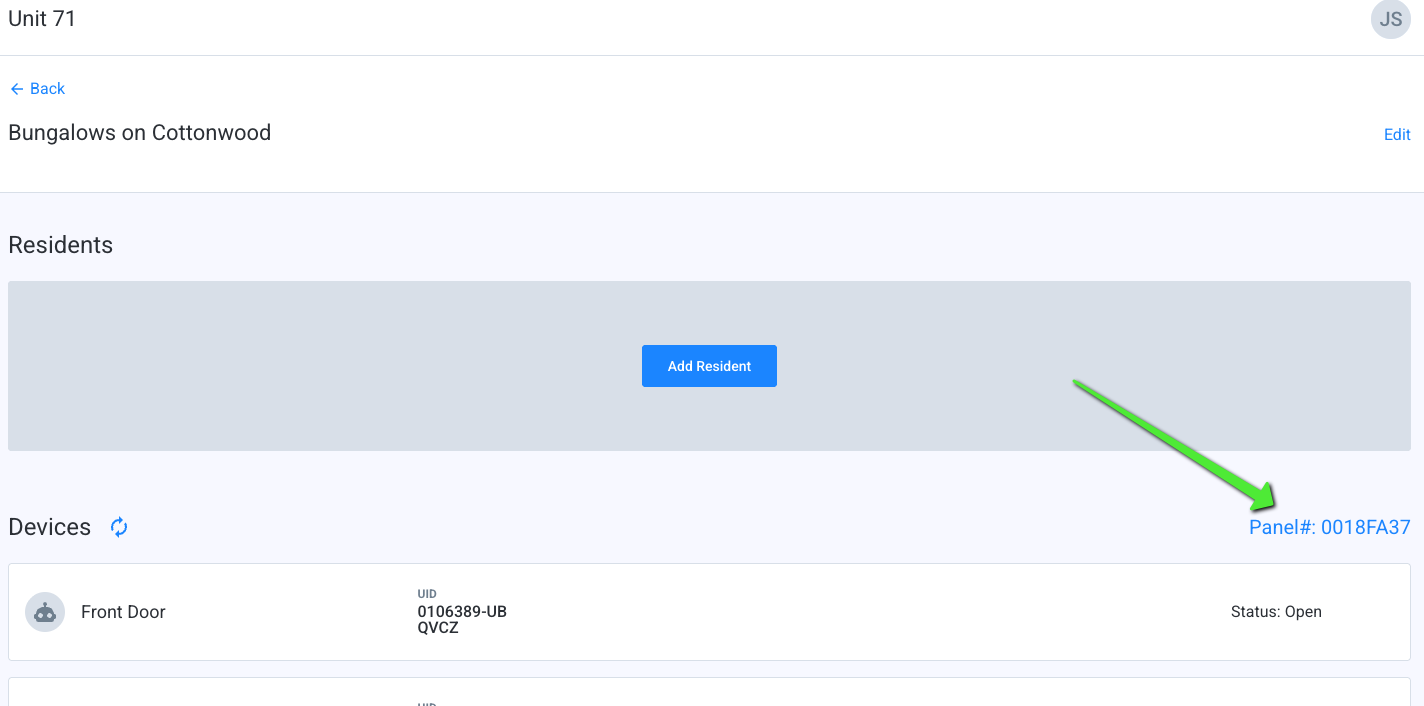
2. In the Panel page, confirm there is no existing lock. If there is, click the 3 dots next to it and "Hide Device". Click on the "Add Device" button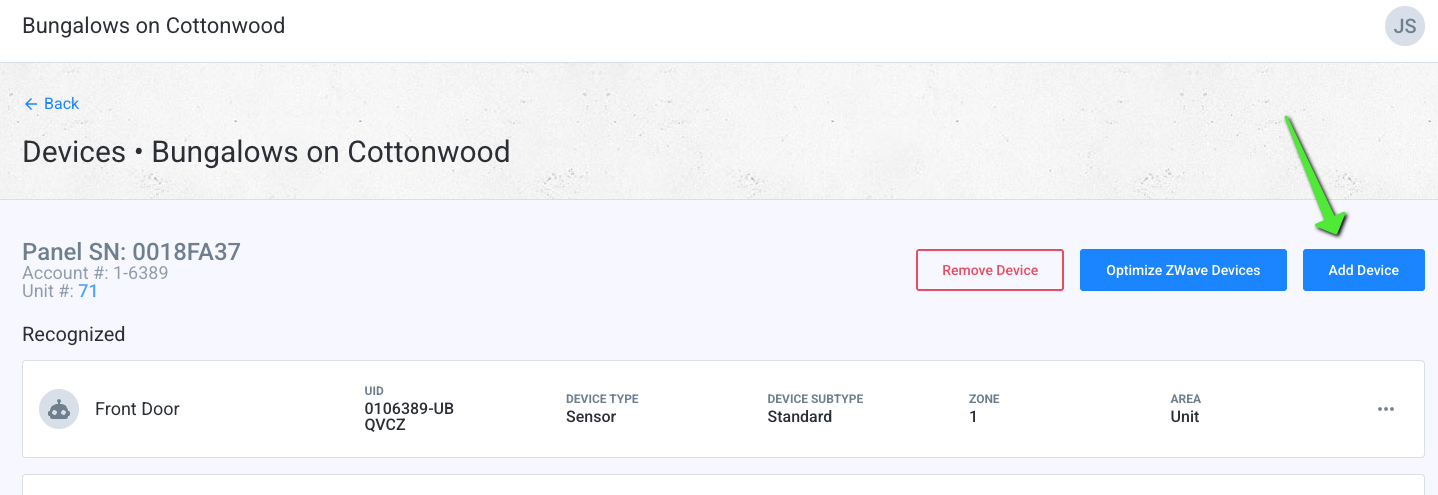
3. Select "Zwave Device" and then, on the following page, from the device drop-down, select "Lock", and then "Continue"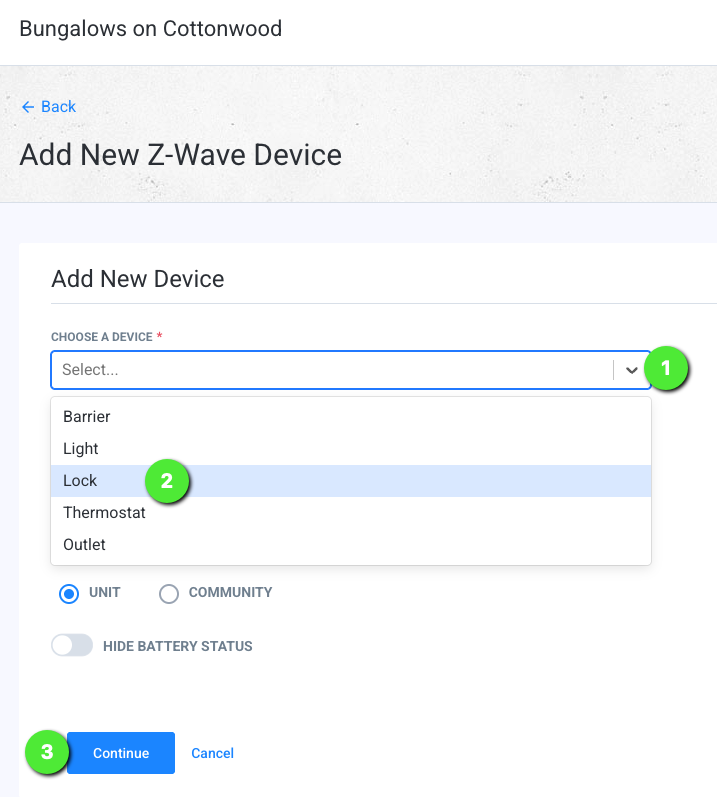
4. The webpage will say "Connecting to Panel" and then "Scanning"
5. On the Kadaas Lock, press the following sequence of buttons: Kaadas Button, Kadaas button, then enter the master code, then the Kadaas Button again, Then "0", then, press the 1 and then Kadaas button. (A green flash on the lock will indicate a successful "step" in teh process. Red - start over). On the webpage, "Scanning" will change to "Device Found" and then "Lock device Added". The Lock has been successfully added to the new unit!
Step 3: Optimize and Sync Codes:
Once the lock has been added, press the "Optimize Zwave Devices" and let that complete. A green checkmark indicates the new lock has been added successfully.
Add someone to the unit. This will generate a code, and sync it down to the system.
Occasionally we've found that these codes take about 5 minutes to sync fully down and start working.
Thats it! Call LittleBird if you have any issues or questions through the process.
Was this article helpful?
That’s Great!
Thank you for your feedback
Sorry! We couldn't be helpful
Thank you for your feedback
Feedback sent
We appreciate your effort and will try to fix the article