TABLE OF CONTENTS
Sensor Showing Unknown
If a sensor is showing "unknown" - generally speaking, that sensor has never received programming updates, and as such, likely needs a service call as something is not talking to the panel correctly. One thing to check:
- Hold a strong magnet to the sensor in the door frame, and remove it, 3-5 times.
- Refresh the devices in the portal.
- If the unknown status goes away - try closing the door and opening it a few times to see if the status changes.
If it does, great! If not, then a service call is likely needed.
Panel Offline
Step 1:
Use the refresh button in the portal to force the system to go out and get the status of the devices.
Use the refresh button in the portal to force the system to go out and get the status of the devices.
Step 2: If the refresh button clears the low battery/disconnected icon, you're good to go. If more show up, the panel is likely offline. Use these instructions to reset the panel - making sure that the ethernet cable is connected to both the LittleBird panel and the router.
Once you've reset the panel, wait 2 minutes, and try the refresh button again. If that clears, great! If not:
Step 3: Take a picture of the enclosure unit, and then reach out to LittleBird
Step 3: Take a picture of the enclosure unit, and then reach out to LittleBird
A few relevant articles on rebooting our equipment can be found here:
Sensor Showing Open
- Check the door first - especially with slider doors, those can be open just a little. Shut it completely, refresh, and see if the status updates
- Hold a strong magnet to the sensor in the frame, and see if the door updates. If it does, then check the corresponding spot on the door for the magnet to see if the magnet is there, and check alignment
Low/0% Battery
- Refresh button is first - check and see if it updates after the refresh is complete.
- Change the batteries, and refresh again
- If it still hasn't updated - click on the panel serial number:
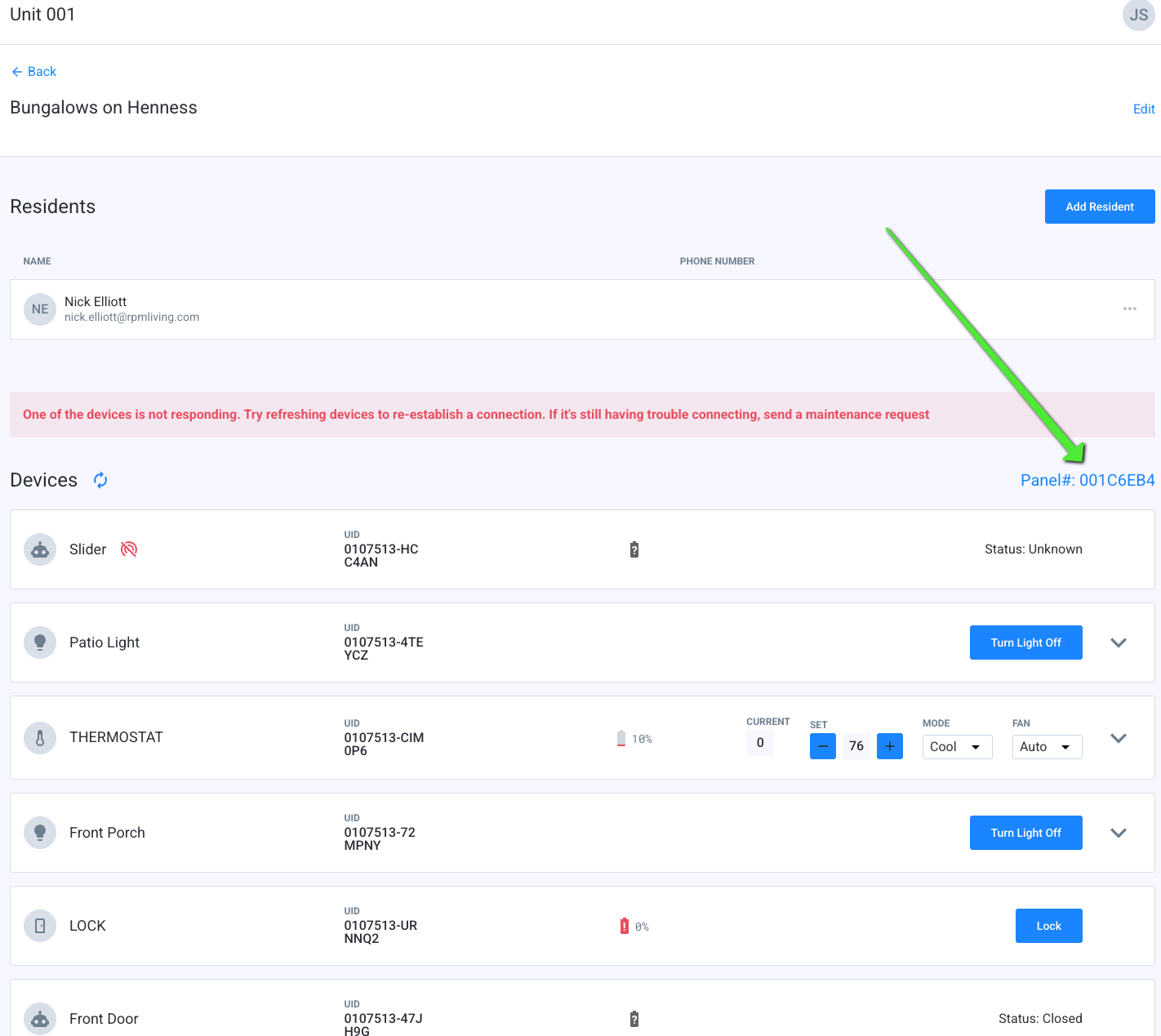
- That will take you do the panel page (if you get an error saying can't connect - see the "Panel Offline" section).
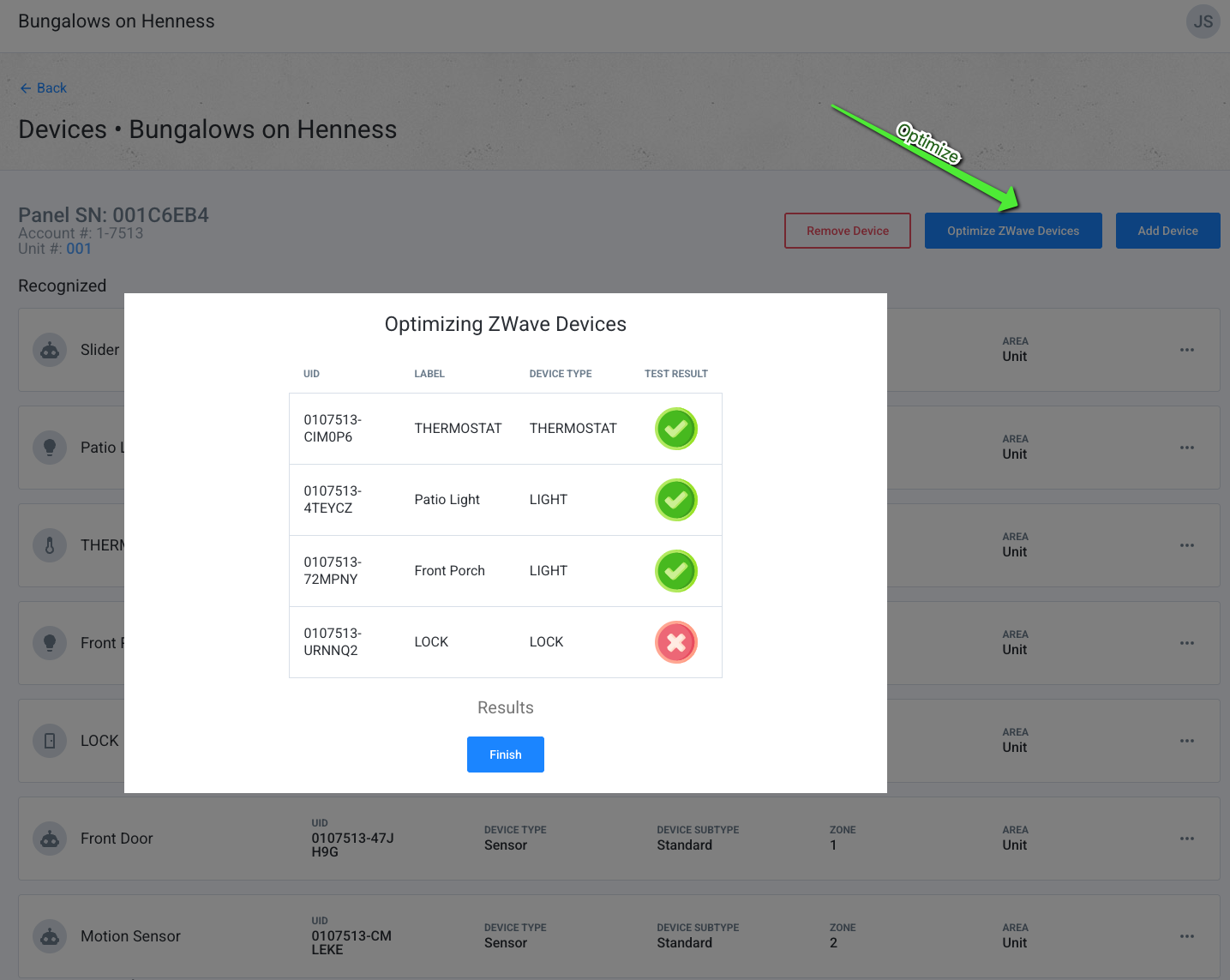
- Once you're in the panel page - select "Optimize Devices". If the lock has a red "X" once the optimize is finished, it likely needs to be re-paired.
Was this article helpful?
That’s Great!
Thank you for your feedback
Sorry! We couldn't be helpful
Thank you for your feedback
Feedback sent
We appreciate your effort and will try to fix the article