Occasionaly you may need to assign a fob to a resident, property guest, or portal user. The process is the same for all three.
Adding a fob (Access Credential)
Navigate to the Edit field for a resident, portal user, or property guest, by clicking the 3 dots next to the user:
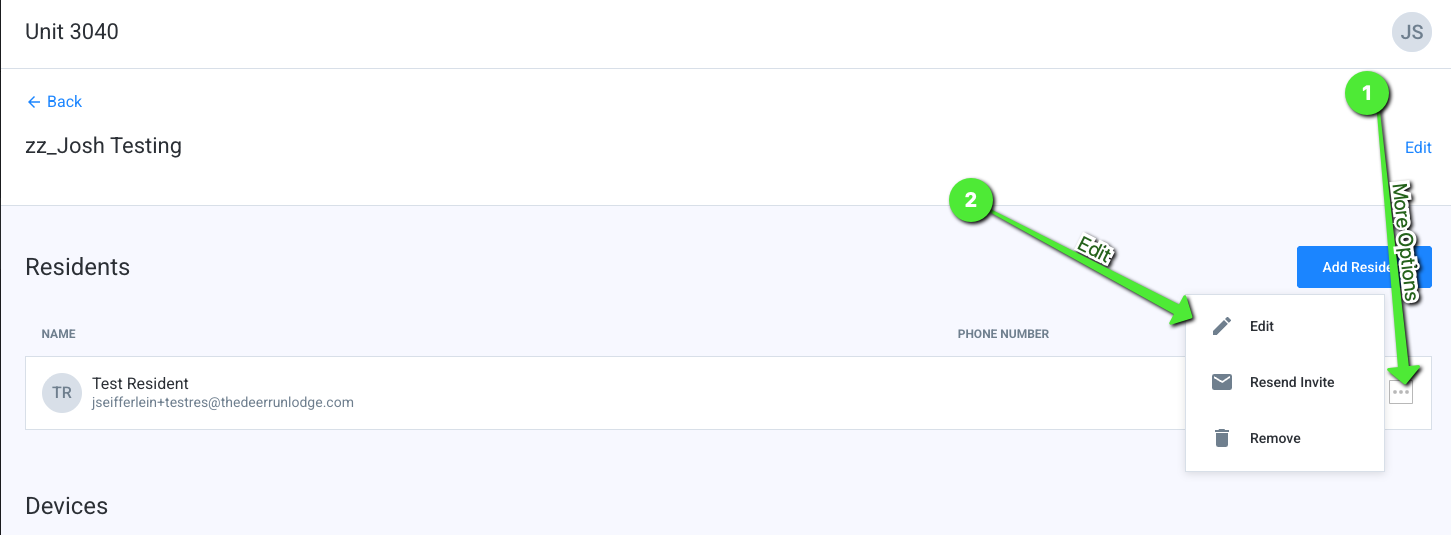
From the Edit Resident form field , click the Credentials tab.
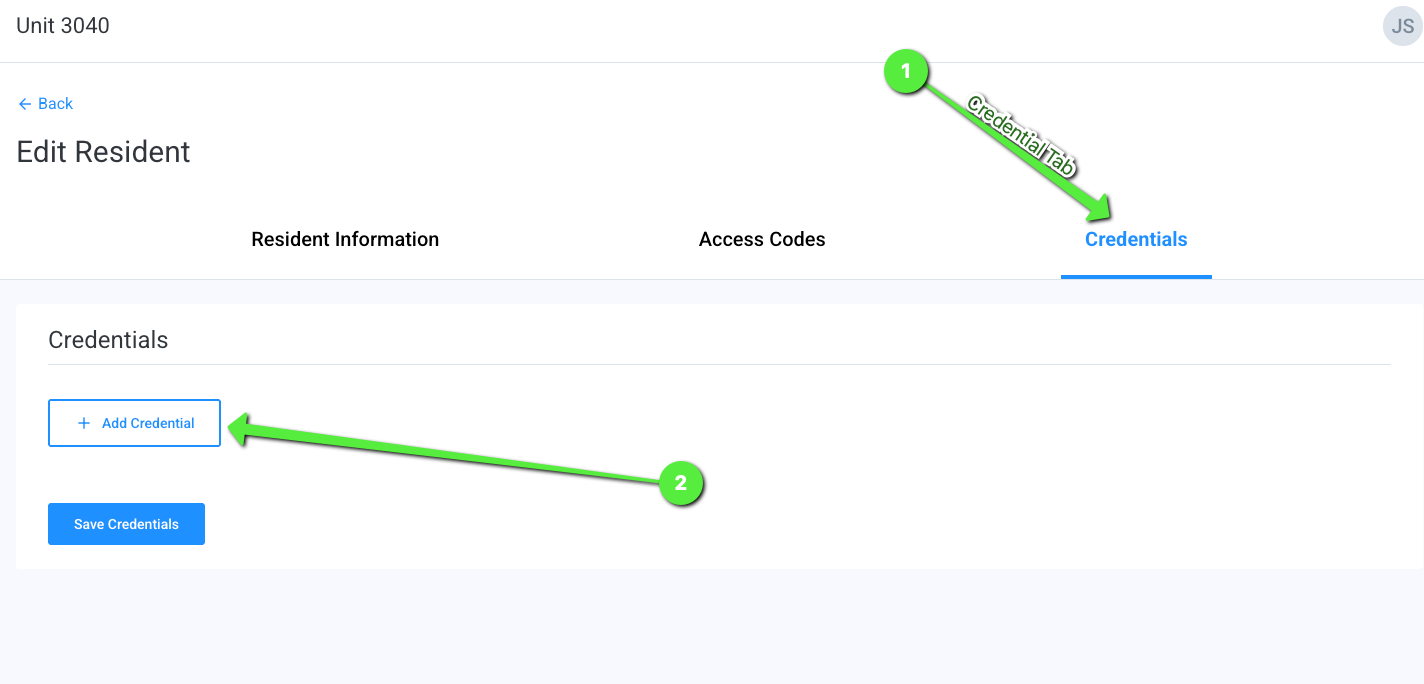
Click the + Add Credential button. The credentials form field will appear.
Enter the serial number of the credential device in the Code text box.
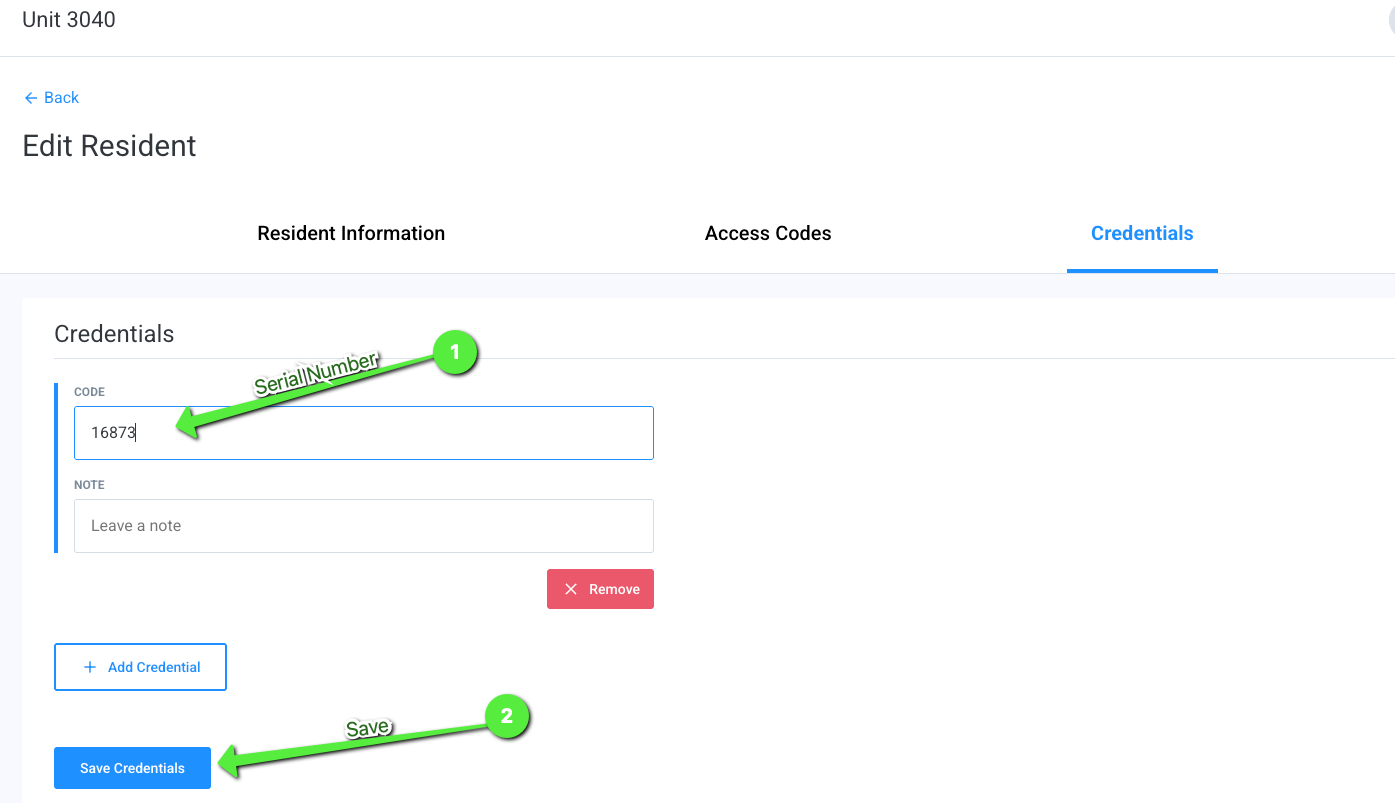
Enter any notes about the credential in the Note text box.
Once you’ve finished entering your resident’s credential information, click the Save Resident button.
Note: If you no longer wish to add the credential for the resident, simply click the Cancel or Back button.
Note: Fobs will take 1-2 minutes to be fully active in the system
Removing a fob (Access Credential)
Navigate to the Edit field for a resident, portal user, or property guest, by clicking the 3 dots next to the user:
From the Edit Resident form field , click the Credentials tab.
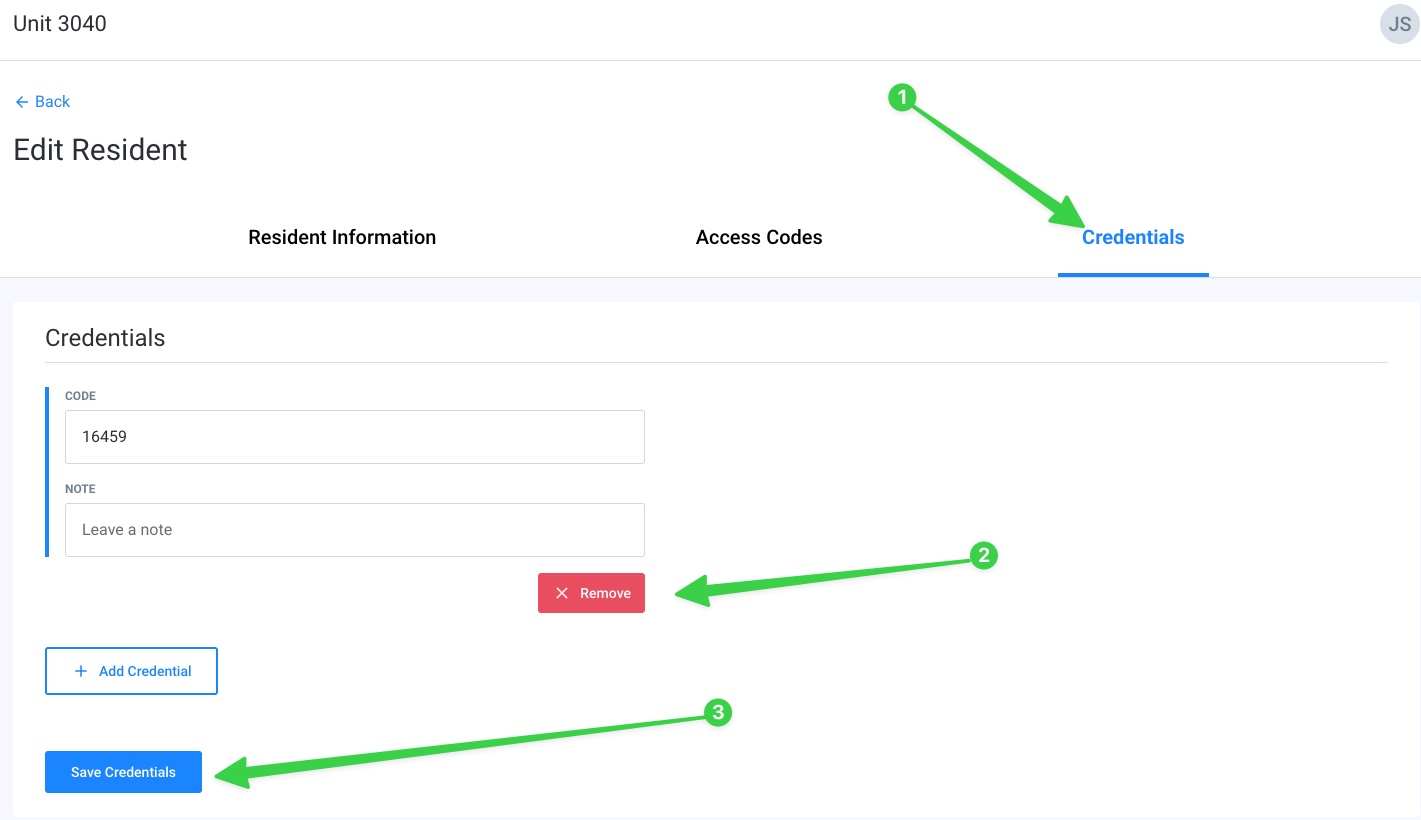
Click the "Remove" button, and then "Save Resident"
Note: Fobs will take 1-2 minutes to be fully removed from the system.
Was this article helpful?
That’s Great!
Thank you for your feedback
Sorry! We couldn't be helpful
Thank you for your feedback
Feedback sent
We appreciate your effort and will try to fix the article